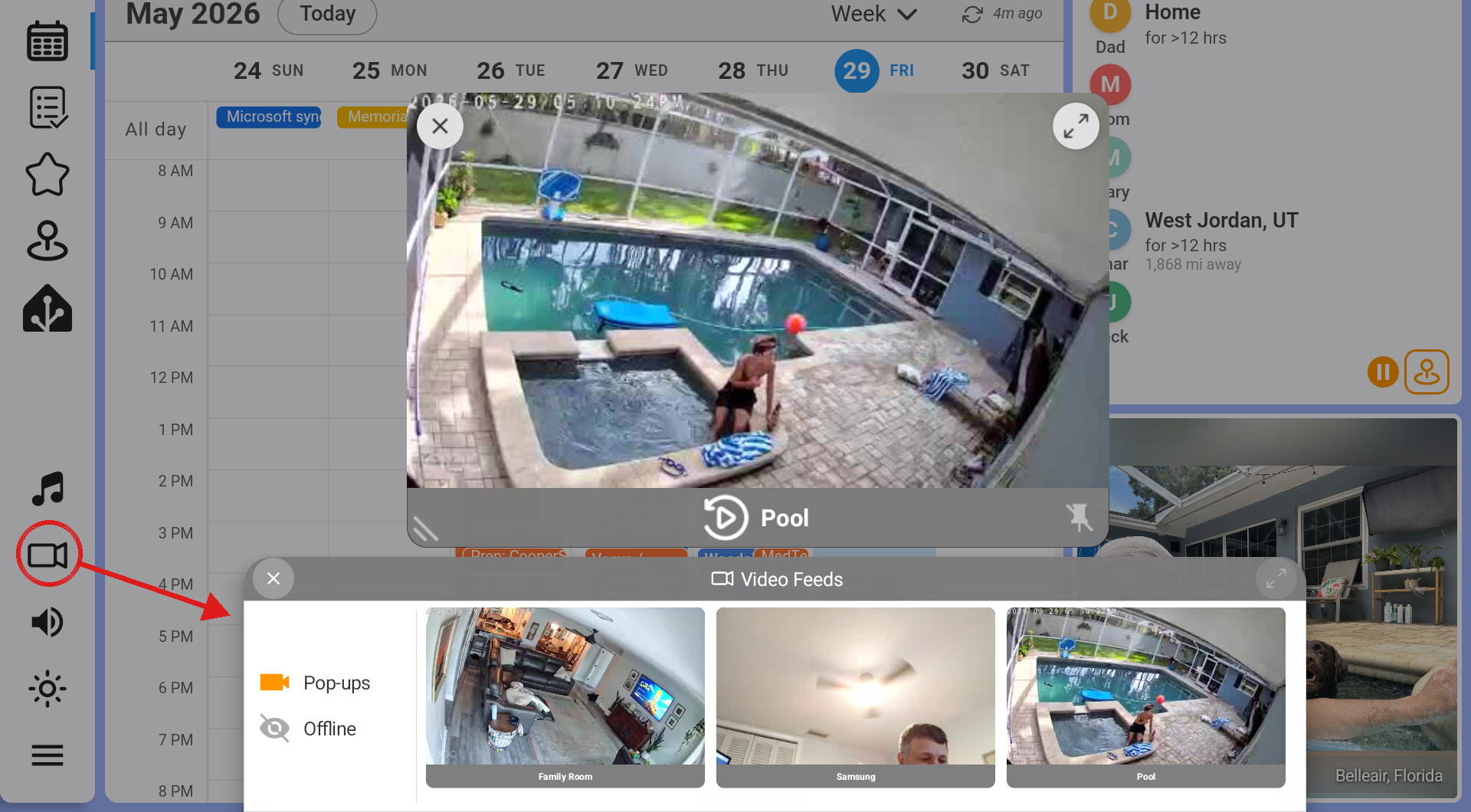
Dashie's Video Feeds turn your dashboard into a live security monitor. Camera feeds can sit permanently in a sidebar strip, or pop up automatically the moment motion is detected at your front door, in the nursery, or by the pool. When a camera is powered by Frigate, Dashie adds a full recording timeline so you can scrub back through the day and replay detected events — all without leaving your dashboard.
About Dashie Video Feeds
A feed is a single camera. You define each feed once — its source, a name, and a quality setting — and it becomes available on every Dashie tablet in your home. Each tablet then decides how it wants to use that feed: always-on, motion-triggered, or hidden entirely. This split is the heart of the system: feeds are shared across the household, but how each device reacts to them is set per device.
On screen, feeds appear as cards that you can drag, pin, maximize, or dismiss. For Frigate cameras, a playback button on the card opens a recording timeline with event thumbnails — a lightweight version of the Frigate UI, built right into your dashboard.
What You'll Be Able to Do
Watch any RTSP, go2rtc, or Home Assistant camera on your dashboard. Have a camera auto-pop with a chime when a door opens or motion is detected. Scrub through Frigate recordings and replay detected events on a timeline. Even turn a spare Dashie tablet into a camera that the rest of your home can watch.
Prerequisites
- The Dashie Home Assistant integration installed — this is what proxies camera streams, delivers motion triggers, and connects to Frigate
- At least one camera in Home Assistant, exposed as a
camera.*entity, an RTSP URL, or a go2rtc stream - For recording playback: Frigate installed (typically as a Home Assistant add-on) with recording enabled on your cameras
- Your Dashie tablets and Home Assistant server on the same local network
How It Works
Dashie does not talk to your cameras directly. Everything flows through the Dashie Home Assistant integration, which acts as a smart proxy: it resolves camera entities to playable streams, watches your motion sensors and pushes alerts to each tablet, and relays requests to Frigate for recordings and events.
Streams and triggers flow through the integration to each Dashie tablet:
RTSP / go2rtc / camera.*
Proxy + Trigger push
Feed cards + Playback
Live video, motion triggers, and Frigate recordings all reach the tablet through the integration.
When you watch a feed, the integration first sends a lightweight stream that starts instantly, then transparently upgrades a focused or maximized card to a higher-quality stream with audio.
Part 1: Add a Video Feed
Feeds are managed from Dashie's native settings on the tablet. Add a feed on one tablet and it appears on all of them.
Open Video Feeds Settings
On your Dashie tablet, open the sidebar, tap the Settings gear, and go to Video Feeds. Turn on Enable Video Feeds at the top.
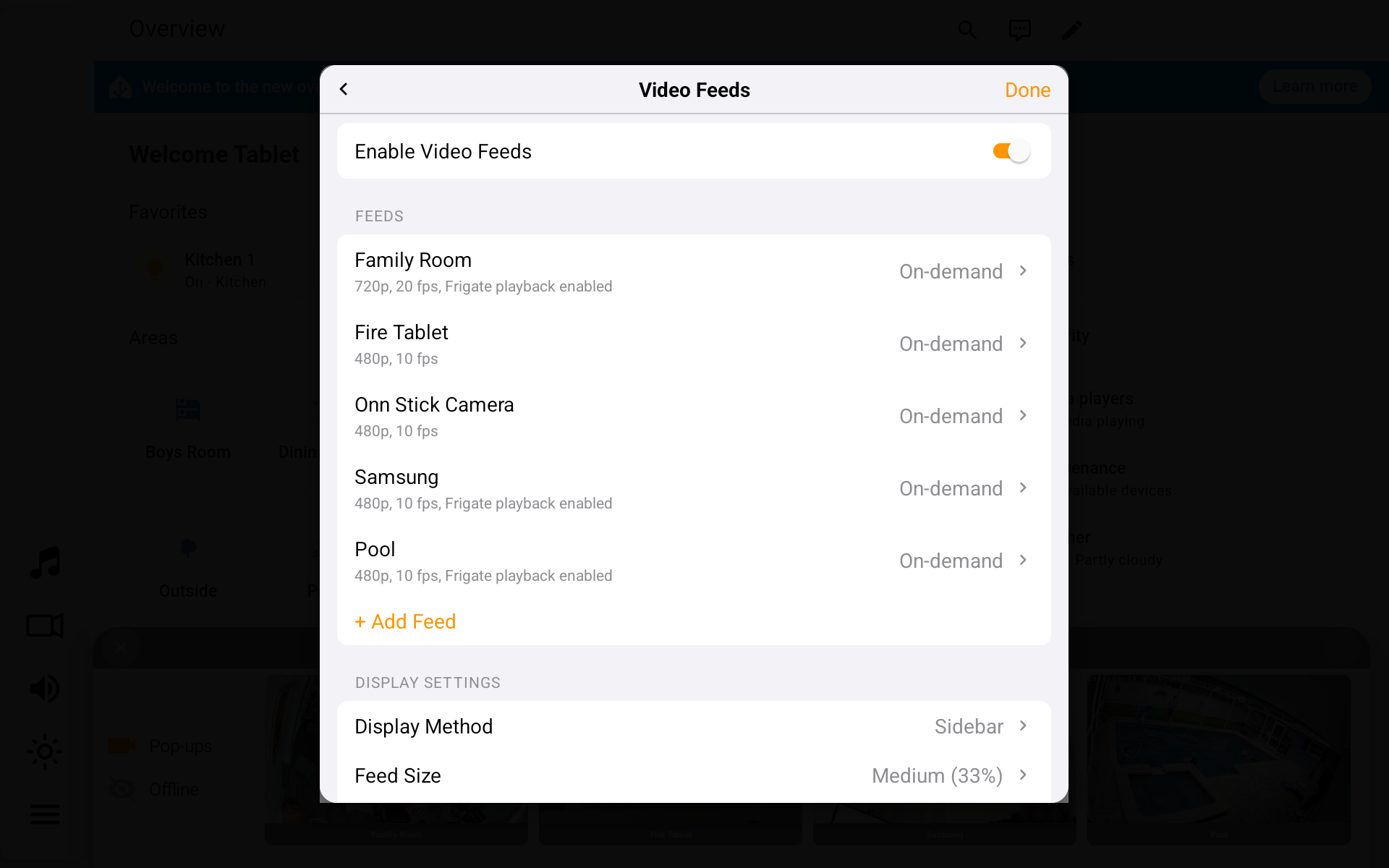
Tap "+ Add Feed"
Choose a Source Type — this tells Dashie where the video comes from:
• HA Camera Entity — Pick an existing camera.* entity from a list. The
simplest option if your camera is already in Home Assistant.
• RTSP URL — Paste a direct stream URL like
rtsp://user:pass@192.168.1.50:554/stream1.
• go2rtc Stream — Enter the name of a stream you've defined in go2rtc.
Set the Name and Quality
Give the feed a Stream Name (e.g. "Front Door"). If you picked a camera entity, Dashie fills this in for you. Then set:
• Frame Rate — 5, 10, 15, or 20 fps, or "Native". Lower frame rates use less
bandwidth; 10 fps is a good default for a wall tablet.
• Resolution — 320p, 480p, 640p, 720p, or "Native". Feed cards are small, so 480p
usually looks great while keeping the tablet responsive.
Save
Tap Done. The feed is saved to your home's shared feed list and appears on every Dashie tablet. Each tablet starts in On-demand mode (see Part 2), so nothing pops up unexpectedly until you say so.
Where do feeds appear?
An On-demand feed lives in the camera tray/strip, ready to open with a tap. Triggered feeds pop up on their own. You control the size and placement of these cards in Display Settings (Part 3).
Part 2: Subscription Modes & Triggers
Each feed has a subscription mode that controls how this tablet reacts to it. Open a feed from the Video Feeds list to see the four options.
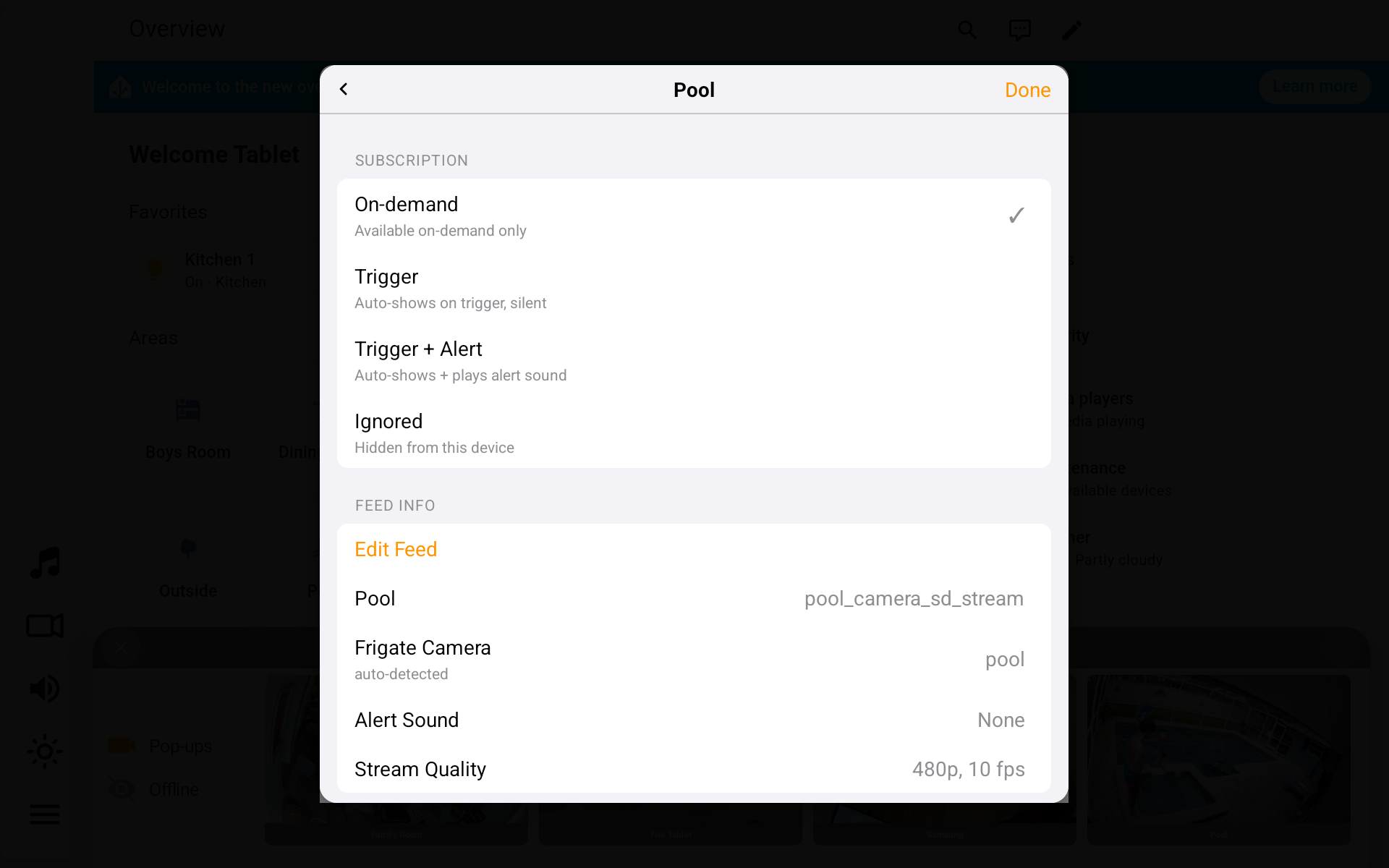
On-demand
Available on-demand only. The feed never pops up on its own — it sits in the camera tray waiting for you to open it. This is the default for every new feed.
Trigger
Auto-shows on trigger, silent. When the feed's trigger fires (e.g. motion or a door sensor), the card appears on screen automatically — with no sound.
Trigger + Alert
Auto-shows and plays an alert sound. Same as Trigger, but also plays a chime so you notice even if you're not looking at the dashboard.
Ignored
Hidden from this device. The feed disappears from this tablet entirely — no tray entry, no pop-ups. Other tablets are unaffected.
Per-Device by Design
Because the mode is set per device, you can have the nursery camera auto-pop with a chime on the bedroom tablet, stay silent in the kitchen, and be hidden on the living-room TV — all from one shared feed. Set the mode on each tablet to match how that room should behave.
Setting Up a Trigger
For Trigger and Trigger + Alert modes to do anything, the feed needs a Trigger Entity — the
Home Assistant sensor that decides "show this camera now." Edit the feed and, under the Trigger section, pick a
binary_sensor or input_boolean. Common choices:
- A door/window contact sensor —
binary_sensor.front_door - A motion sensor —
binary_sensor.driveway_motion - A Frigate detection sensor —
binary_sensor.front_door_person
When that entity turns on, the Dashie integration pushes a trigger to your tablets, and any tablet
subscribed in a Trigger mode pops the camera up. The trigger is an ordinary Home Assistant state change, so anything
you can model as a binary sensor — an automation, a helper toggle, a Frigate event — can drive a feed.
Frigate cameras trigger the same way
A Frigate camera isn't special when it comes to triggering — you still bind it to a sensor. Frigate
conveniently exposes per-camera binary_sensor.<camera>_motion and
binary_sensor.<camera>_person entities; pick whichever matches what you want to be alerted about.
Trigger Sounds and Timing
These options fine-tune what happens when a feed pops up:
- Trigger Sound — For Trigger + Alert feeds, choose from a set of built-in chimes (bells, chimes, wood knocks, and more). You can preview each one before saving.
- Auto-Dismiss — How long a popped-up feed stays on screen before closing itself (default 30 seconds, adjustable 0–300). Set to 0 to keep it up until dismissed manually.
- Display while Active — Keep the feed on screen as long as the trigger sensor stays
on, dismissing only once motion clears. - Cooldown — A quiet period after a feed dismisses, so a flickering sensor doesn't pop the same camera over and over (0–300 seconds).
Muting Alerts Temporarily
Tap the bell icon in the sidebar's volume popout to mute video-feed chimes without changing any per-feed settings. There's also an Alerts sub-screen in Video Feeds settings with a master enable and a volume slider for the chimes.
Part 3: Display Settings
At the bottom of the Video Feeds settings screen, Display Settings control where feed cards appear and how big they are. These are set per tablet.
Display Method
- Sidebar — Feeds dock as a vertical strip along the right edge. Cards can be dragged out to float anywhere on the dashboard. Best for an always-on monitoring layout.
- Notification — Triggered feeds appear centered toward the bottom of the screen, like an alert. Up to four cards arrange into a grid. Best when you mostly want pop-ups, not a permanent strip.
Feed Size
Cards are 16:9 and sized as a percentage of the screen width:
- Small — 25% of screen width
- Medium — 33% (the default)
- Large — 50%
- Extra Large — 75%
Part 4: Frigate Integration
If you run Frigate, Dashie unlocks recording playback on top of the live view — no extra configuration in Dashie required. It detects Frigate cameras for you.
How Dashie Detects a Frigate Camera
The integration asks Frigate for its list of camera names and then matches each of your feeds against them. A feed is recognized as a Frigate camera if any of these line up with a Frigate camera name:
- The go2rtc stream name
- The feed's name (lowercased, spaces become underscores — "Family Room" →
family_room) - The camera entity's ID containing the camera name (e.g.
camera.pool_camera_sd_streammatches the Frigate camerapool)
When there's a match, the feed shows "Frigate playback enabled" in the list, and its Frigate Camera field reads auto-detected. If the auto-match is wrong, edit the feed and set the Frigate Camera override to a specific camera, or to None to treat the feed as live-only.
What "Frigate playback enabled" unlocks
A small playback icon appears on the camera card next to its name. Tapping it opens the recording timeline covered in Part 5. Non-Frigate feeds are live-only and don't show this icon.
What to Enable on the Frigate Side
- Recording — The camera needs
recordenabled in Frigate. Continuous recording gives you a full, scrubbable timeline; record-on-motion gives you blue segments only where there was activity. - Detection & snapshots/clips — To get the event thumbnails on the right side of the playback view, the camera needs object detection with clips enabled, so Frigate stores replayable events.
- Resolution — Frigate records at full camera resolution, which can exceed what a tablet can decode. Keep cameras at 1080p or below for playback, or have Frigate/go2rtc provide a downscaled stream (more on this in Part 6).
Part 5: Frigate Clip & Recording Playback
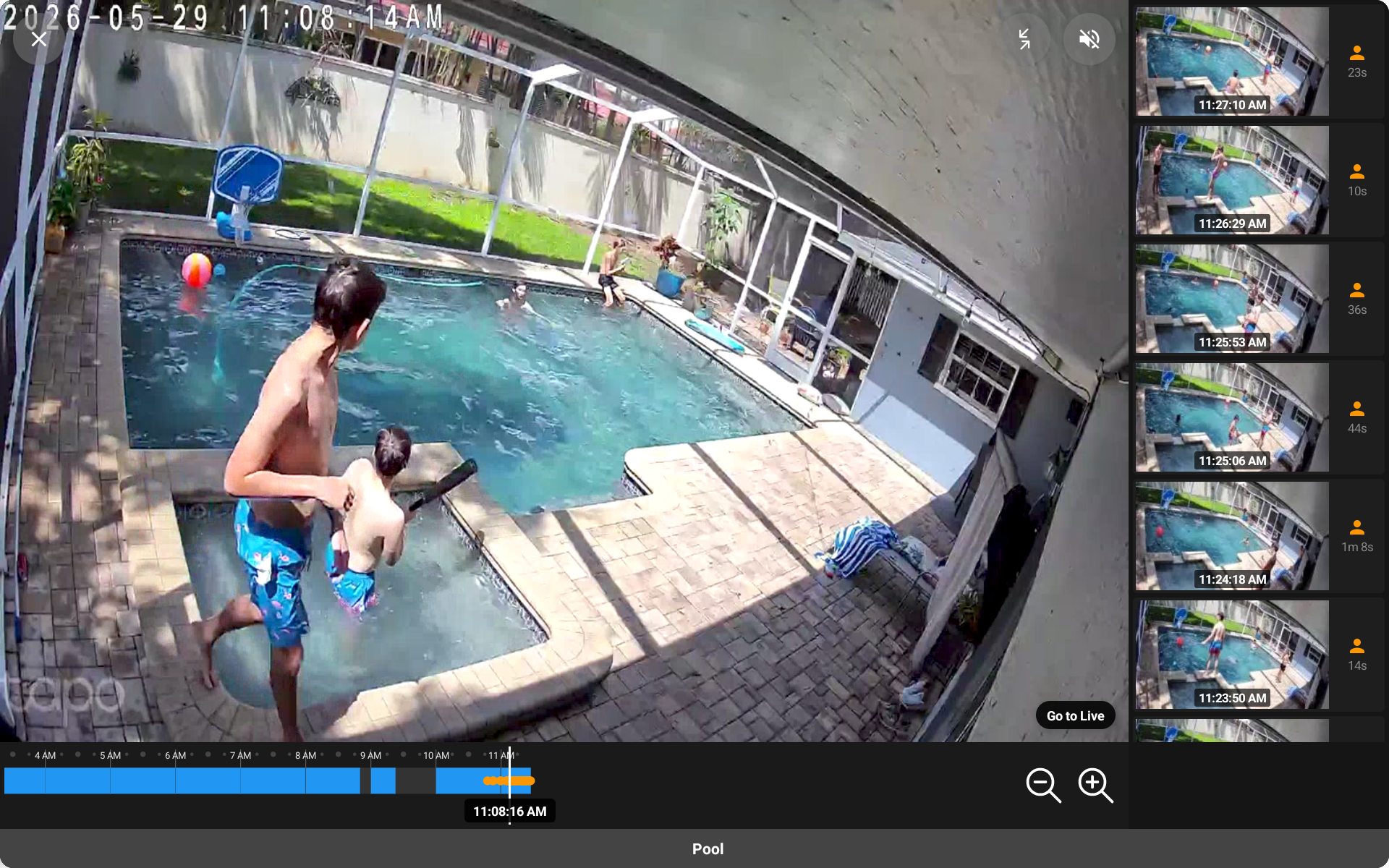
Tap the playback icon on a Frigate camera card to switch from live view into playback mode. The card expands into a full timeline view.
The Timeline
Along the bottom is a scrollable timeline. Blue segments mark where Frigate has recorded footage, and small colored dots mark detected events (orange for people, blue for cars, and so on). The timeline is "Tapo-style": a fixed marker stays in the center and the timeline scrolls beneath it, with the current time shown above the marker.
- Scrub — Drag the timeline left or right. When you stop, Dashie loads the recording at that moment and starts playing.
- Zoom — Use the magnifier + / − buttons to zoom from a wide multi-hour view down to fine, minute-level scrubbing.
- Go to Live — The pill in the corner shows ● LIVE when you're watching the live stream, or Go to Live when you're in a recording. Tap it (or scrub all the way to "now") to jump back to live.
Event Thumbnails
The column on the right lists recent detected events, each with a snapshot, a timestamp, and the type of object. Tap an event to jump straight to that clip. Events without a stored clip show a brief "Clip not recorded" note instead of playing.
As a clip plays out, Dashie automatically continues into the next segment of recording, so you can watch a stretch of the day continuously. When playback catches up to the present, it returns to the live stream on its own.
"Camera resolution too high for this device"
If a clip won't play and you see this message, the recording's resolution is beyond what the tablet's video decoder can handle. Lower the camera's recording resolution to 1080p or below, or have Frigate/go2rtc serve a downscaled stream. (The integration can transcode clips down to 720p if FFmpeg is available in your Frigate/HA environment.)
Part 6: Using a Dashie Tablet as a Camera (Advanced)
A spare Dashie tablet or TV stick can publish its own front camera as a video feed that the rest of your home — and Frigate — can watch. This is great for a nursery cam, a pet cam, or a second angle on a room.
Turn On the Device Camera
Enable the device's RTSP camera in Dashie settings. The device starts an on-board RTSP server (hardware-encoded
H.264, on port 8554) and the Dashie HA integration exposes it as a normal Home Assistant camera entity,
e.g. camera.<device>_camera. From there you can add it as a feed on other tablets exactly like any
other camera (Part 1), and other Dashie tablets can view it live with no extra setup.
Recording a Dashie-tablet camera in Frigate needs a re-encode
Watching a tablet's camera live works everywhere. But getting Frigate to record it is the catch. The tablet's H.264 stream doesn't repeat its stream parameters (SPS/PPS) at every keyframe, so Frigate's copy-into-MP4 recording path produces unplayable segments.
The fix is to have go2rtc re-encode the stream before Frigate records it. A plain
remux (#video=copy) is not enough — the video has to be genuinely transcoded so the
parameter sets are rewritten.
The go2rtc Re-Encode
In the go2rtc configuration that Frigate uses, wrap the tablet's stream with an FFmpeg transcode. The second line is what does the work:
go2rtc:
  streams:
    nursery_tablet:
      - rtsp://192.168.1.49:8554/
      - "ffmpeg:nursery_tablet#video=h264#audio=aac"
Then point a Frigate camera at the nursery_tablet go2rtc stream and enable detect/record as usual. This
re-encode is a manual entry you maintain on the Frigate/go2rtc host — Dashie doesn't write it
for you, because it lives in Frigate's own configuration.
Save CPU with hardware acceleration
A software re-encode costs roughly 5–10% of one CPU core per tablet-camera at 480p on the Frigate host. If
your host has a supported GPU, add a hardware flag to cut that to 1–2%: #hardware=qsv for Intel
iGPUs, #hardware=vaapi, or #hardware=nvenc for NVIDIA. You can also append
#vflip or a rotation if the camera mounts upside-down.
Troubleshooting
A feed shows a black card or won't load
- Confirm the Dashie Home Assistant integration is installed and online — it's required for every feed
- For a camera entity, open it in Home Assistant first to confirm the stream itself works
- For an RTSP URL, double-check the address, port, and credentials
- Make sure the tablet and Home Assistant are on the same local network
A triggered feed never pops up
- Check that this tablet's subscription mode for the feed is Trigger or Trigger + Alert, not On-demand
- Confirm the feed has a Trigger Entity bound and that the entity actually turns
onin Home Assistant when you expect - Make sure Enable Video Feeds is on, and that alerts aren't muted (bell icon in the volume popout)
- Watch the Cooldown window — a feed won't re-pop during its cooldown period
No playback icon on a Frigate camera
- The feed must be recognized as a Frigate camera — check that its Frigate Camera field shows a name (auto-detected) and isn't set to None
- If auto-detection missed it, set the Frigate Camera override manually in the feed's settings
- Confirm the camera name in Frigate matches what Dashie is trying to match against (the feed name, entity ID, or go2rtc stream name)
The timeline is empty or has no blue segments
- The camera needs
recordenabled in Frigate — without recordings there's nothing to scrub - Blue segments only appear where footage exists; record-on-motion cameras will have gaps
- Give Frigate a few minutes after enabling recording before footage shows up
A clip won't play ("resolution too high")
- Lower the camera's recording resolution to 1080p or below in the camera/Frigate settings
- Or provide a downscaled stream via go2rtc/Frigate so the tablet can decode it
A Dashie-tablet camera plays live but won't record in Frigate
- This is the SPS/PPS issue from Part 6 — add the FFmpeg re-encode to the go2rtc stream Frigate uses
- A plain
#video=copyremux won't fix it; use#video=h264so the stream is fully transcoded
Need More Help?
If you're still stuck, contact us with details about your setup — your camera type, source (entity/RTSP/go2rtc), and whether Frigate is involved. For Frigate-specific configuration, see the Frigate documentation.