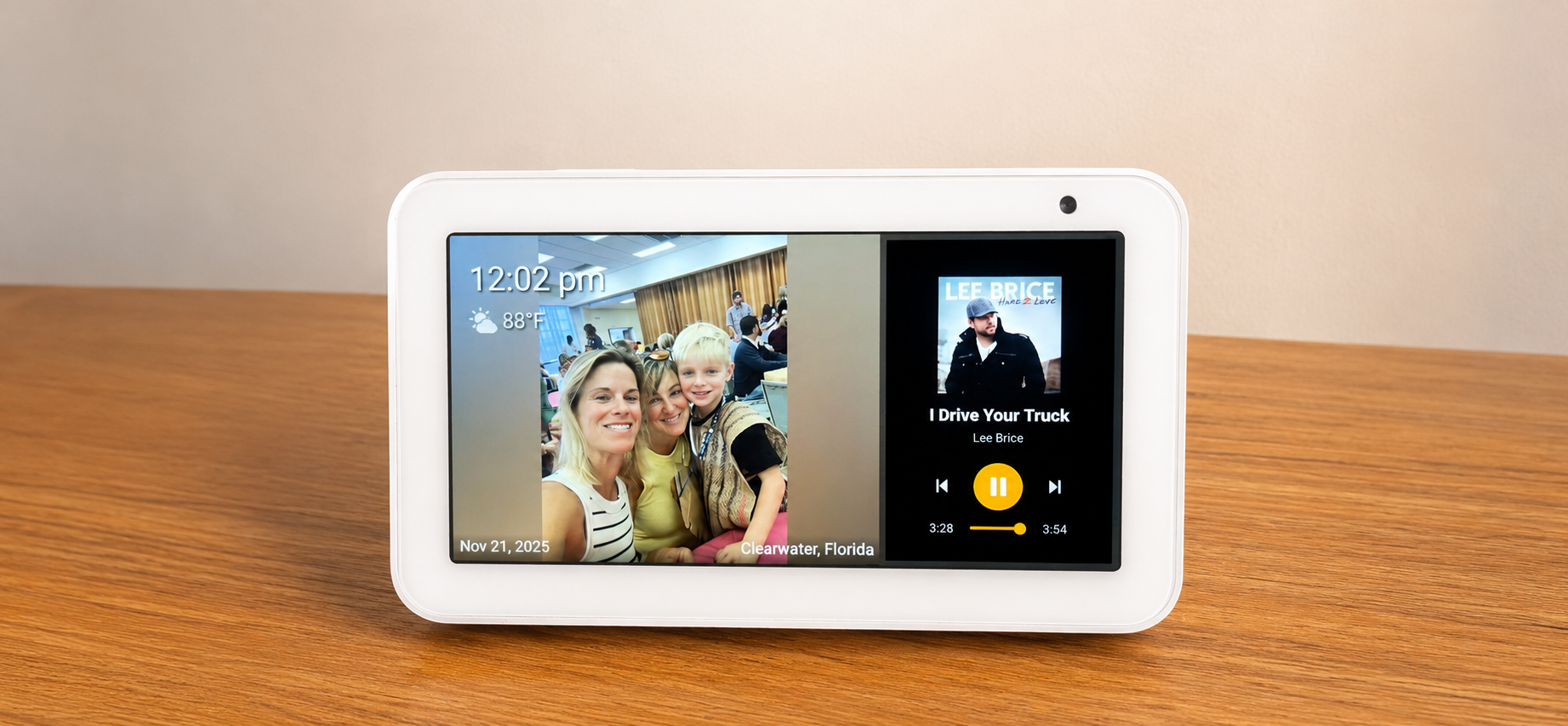
The Amazon Echo Show 5 (2019) is a tidy little 5.5" touchscreen with a great speaker and microphone — and it can be found cheap secondhand. The catch is that out of the box it runs Amazon's locked-down Fire OS and only does what Alexa allows. Once you replace that with LineageOS, it becomes an ordinary Android device — and a genuinely great compact panel for Dashie: small footprint, always-on, and a mic and speaker already built in for "Hey Dashie" voice control.
This guide is in two parts:
- Part 1 — Put LineageOS on the Echo Show 5. This is the hardware/firmware work, and it's done with excellent community-maintained guides that we link to below.
- Part 2 — Install Dashie. Once LineageOS is running, getting Dashie on is the easy part — a couple of ADB commands.
What you'll need
-
An Echo Show 5 1st generation (2019) — codename
checkers. This guide is specific to that model. (The 2021 2nd-gen, codenamecronos, has its own separate port — check the XDA forums if that's what you have.) -
A computer (Mac, Windows, or Linux) with ADB and Fastboot
installed — the Android "platform-tools". Grab it from
developer.android.com,
unzip it, and make sure
adbandfastbootare on your PATH. - A USB data cable and a bit of patience.
- WiFi credentials for the device — you'll connect it to your network after LineageOS is installed.
Part 1 Install LineageOS
The Echo Show 5 (2019) has a mature, well-documented LineageOS port thanks to the XDA community (much of it by developer bengris32). Rather than re-publish firmware steps that change over time — and that can brick a device if they're even slightly out of date — we point you to the authoritative threads. Follow them top to bottom.
1. Unlock the bootloader & install recovery (TWRP)
Start with the unlock/root/recovery thread for the 2019 model. It walks through unlocking the bootloader and flashing TWRP, and includes unbrick instructions if something goes sideways: [UNLOCK][ROOT][TWRP][UNBRICK] Amazon Echo Show 5 1st Gen — 2019 (checkers).
2. Flash the LineageOS ROM
Then flash the LineageOS build for checkers from the ROM
thread:
[ROM][UNOFFICIAL][11][checkers] LineageOS 18.1 for the Amazon Echo Show 5 (2019).
You typically copy the ROM ZIP to the device and install it from TWRP.
When you're done with Part 1, the device should boot into LineageOS and connect to your WiFi like any other Android tablet. Now for the easy part.
Part 2 Install Dashie
With LineageOS running, Dashie installs just like on any Android device. We'll turn on USB debugging and sideload the app over ADB.
1. Enable USB debugging on LineageOS
Turn on Developer options
On the device, go to Settings → About phone (or About tablet) and tap "Build number" seven times. You'll see a "You are now a developer" message.
Turn on USB debugging
Go to Settings → System → Developer options and toggle USB debugging ON. Plug the Echo Show 5 into your computer with a USB cable, and tap "Allow" on the "Allow USB debugging?" prompt that appears on the device.
2. Sideload the Dashie app
From a terminal on your computer (Terminal on Mac/Linux, PowerShell on Windows), confirm the device is connected, then install the self-updating Dashie build:
That's it — Dashie now appears in the LineageOS app launcher. The full sideloading walkthrough (including Windows tips and troubleshooting) is in the Android Sideloading guide if you hit any snags; the same ADB steps apply here.
Bonus Make it a dedicated display
Want the Echo Show 5 to boot straight into Dashie with no LineageOS home screen in the way? Set Dashie as the home (launcher) app over ADB:
Reboot and the device comes up directly in Dashie. To get back to system Settings (for example, to change WiFi), hold the BACK gesture / button for about 2 seconds anywhere in Dashie — that's your escape hatch. To undo it, pick a different launcher under Settings → Apps → Default apps → Home app.
- The front camera doesn't work. The Echo Show 5's camera isn't supported under the LineageOS port, so don't plan on using it for video.
- You'll need to manage screen wake yourself. Without Amazon's firmware there's no built-in proximity/presence wake, so the display won't turn on and off on its own. Use a sleep timer to dim or blank the screen on a schedule, and/or wire up the device's ambient light sensor to wake it — otherwise the panel stays on 24/7.
Voice control
The Echo Show 5's built-in microphone and speaker make it a natural fit for hands-free use — no USB mic or OTG adapter required. Pair it with Home Assistant's voice pipeline (Whisper for speech-to-text) to drive the dashboard with "Hey Dashie". See the Voice Control guide for the Home Assistant side.
Support and feedback
We're here to help and we love hearing how people are using Dashie — an Echo Show 5 reborn as a Dashie panel is one of our favorites. Reach out at support@dashieapp.com or through the website and we'll get back to you quickly.